Look for the welcome email in your inbox #
- Look for a welcome email from support@raise.team
- Click the button that says Get Started
First time only: #
Reset your password #
- If this is your first time signing into the portal, you’ll be asked to choose a new password – and then re-type your password to confirm.
Accept the privacy policy #
- Your first time signing into the portal, you’ll be asked to read the Privacy policy.
- Click I accept to continue.
How to get support if you need it #
If you need help along the way, two quick ways to reach us are:
- Email support@raise.team
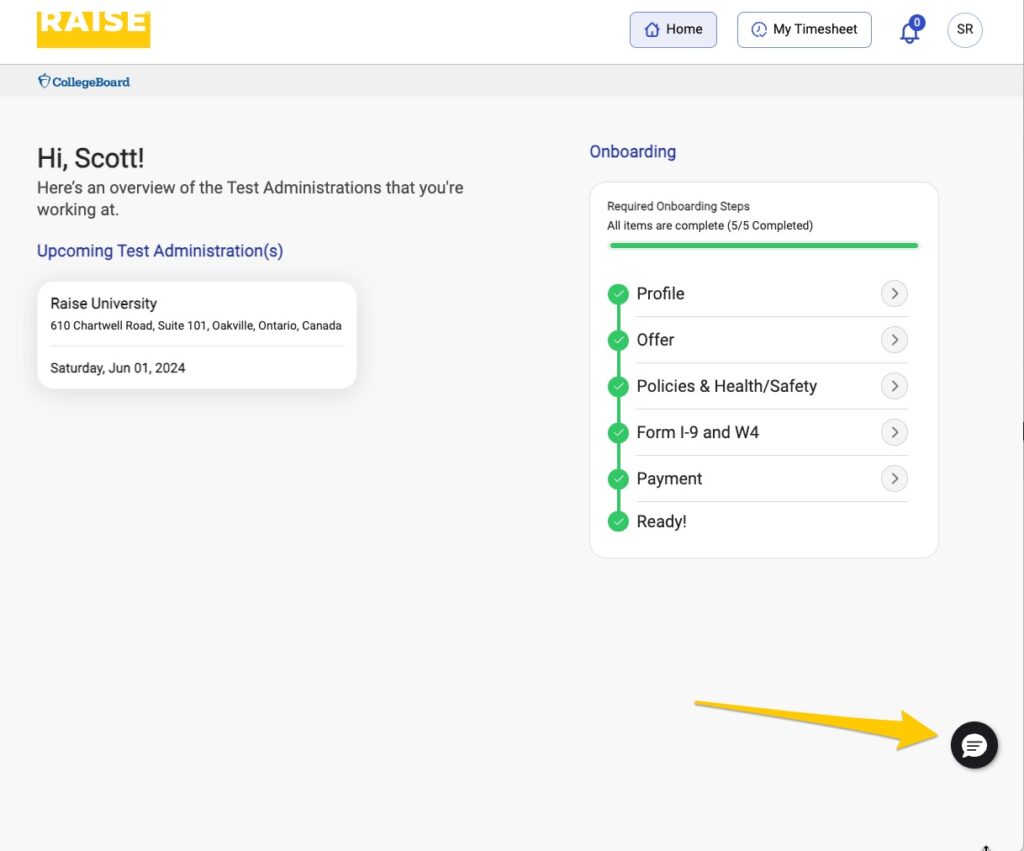
- Click the Chat button in the bottom right corner to open a chat conversation with Raise.
Get started #
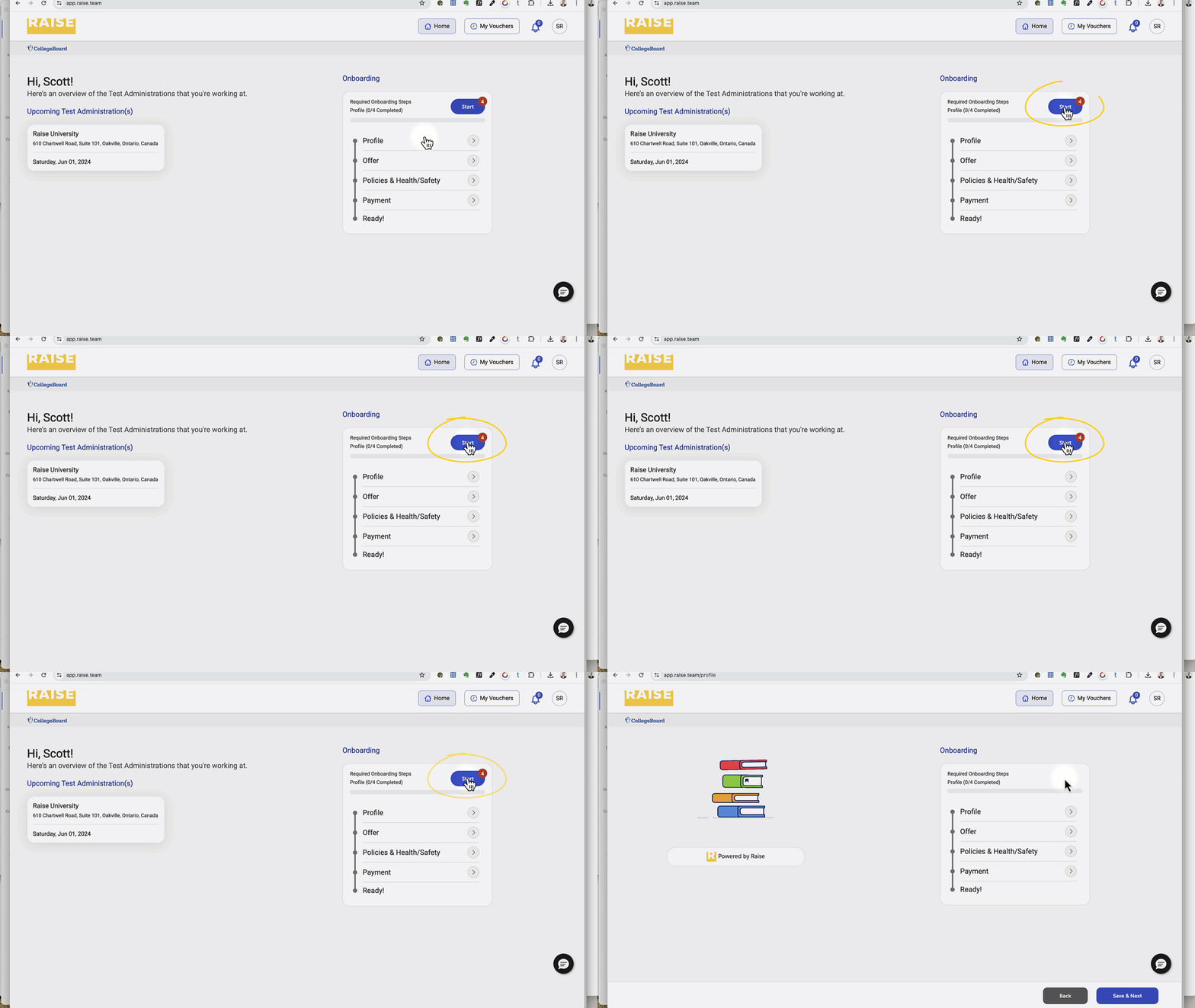
- On the right-hand side, click Start to begin your onboarding.
Complete the Profile #
- Please make sure that your legal name (first name, last name, middle name) and address match your government-issued ID, as this information will be used to fill forms later, and save you re-entering the same information.
- The Preferred Name field is where you can provide the name you want to be addressed by in emails, calls or chats with Raise.
- When your profile is complete, click Save & Next.
Read and sign your Offer #
- If you meet the eligibility criteria listed in the Offer section, click the checkbox next to Yes, I meet the Eligibility Criteria Above.
- Scroll through your Agreement to read it.
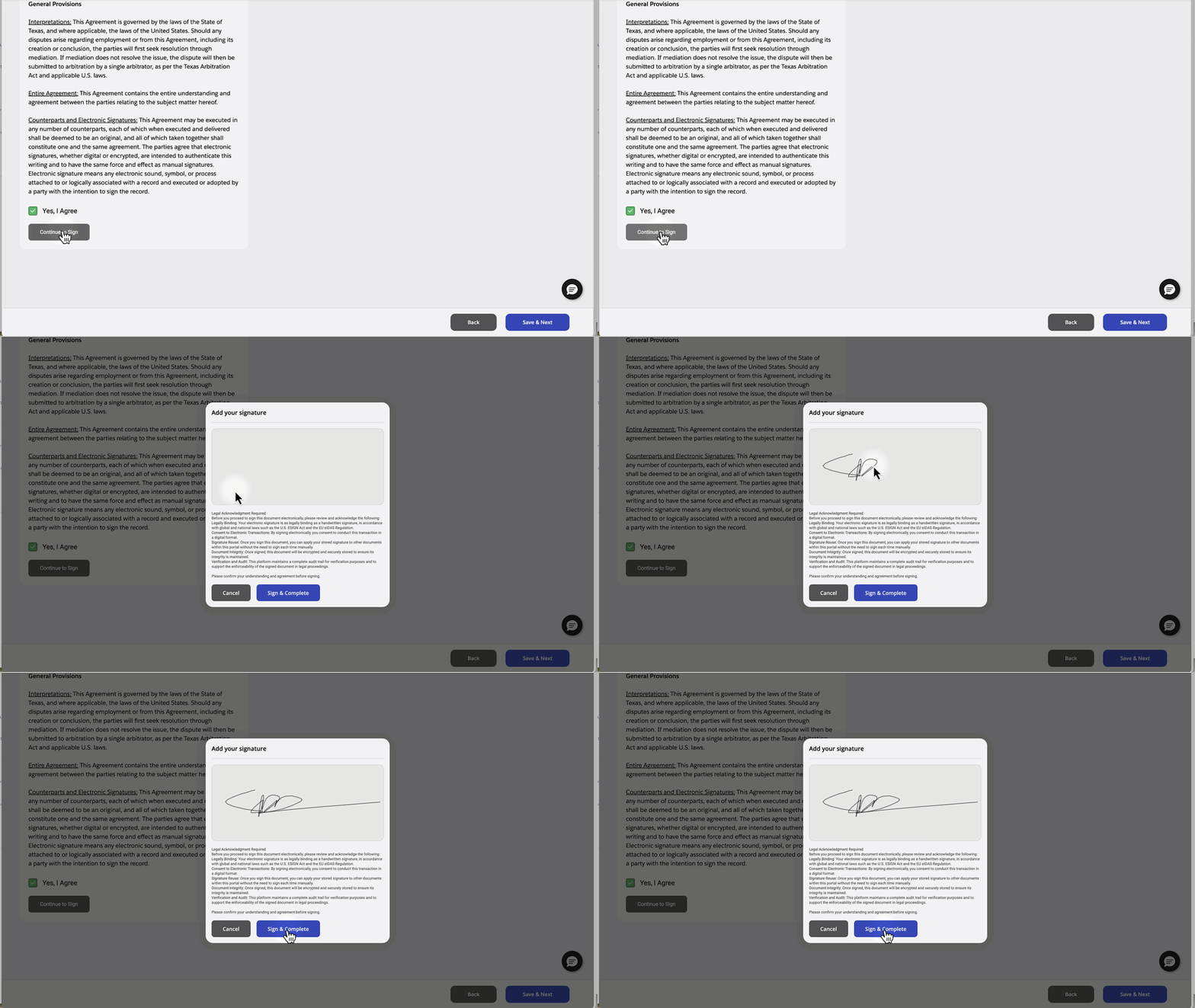
- To continue, click Yes, I Agree.
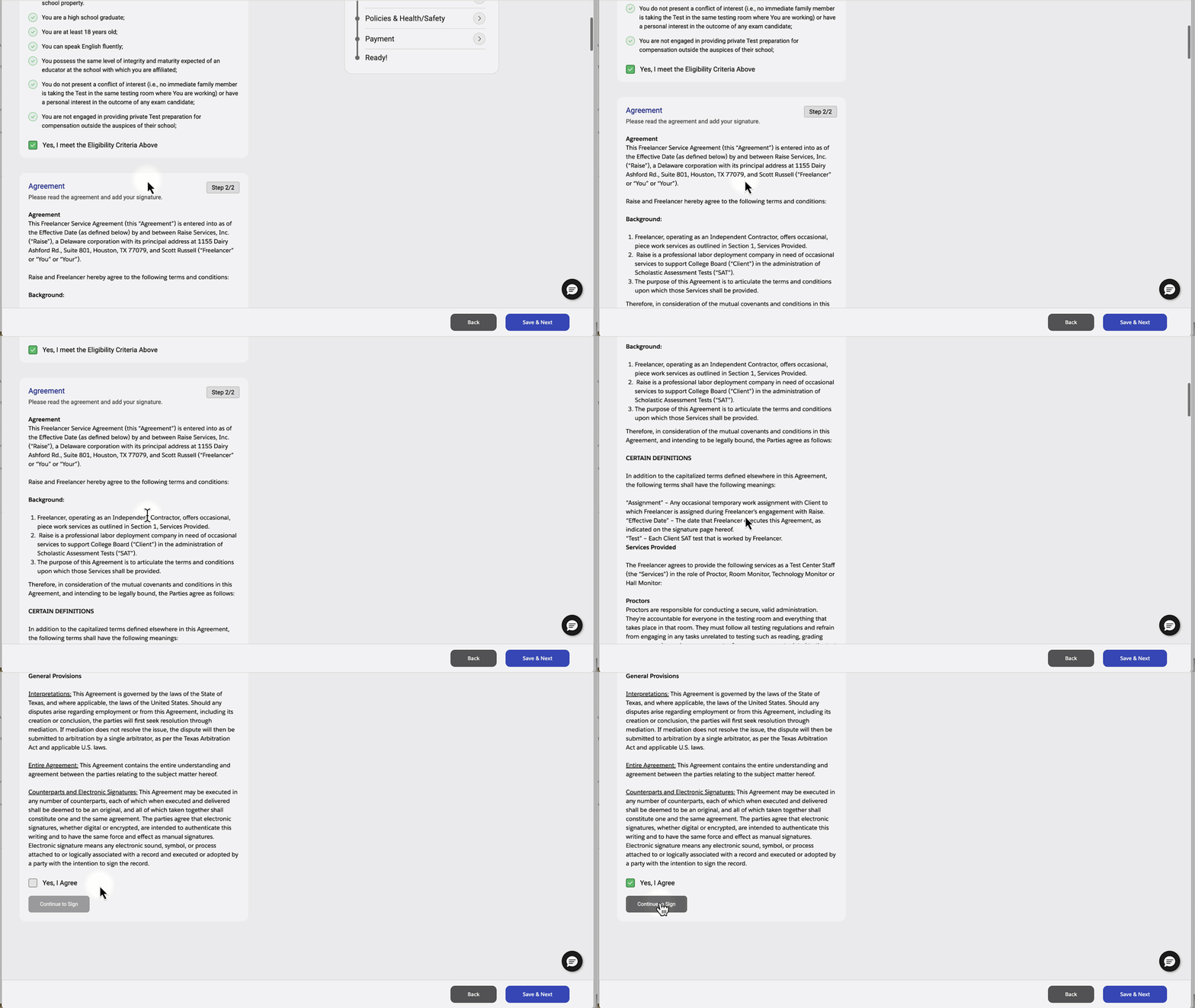
- To sign the offer, click Continue to Sign.
- Draw your signature in the box provided.
- Click Sign & Complete.
- Click Save & Next.
Sign your policies #
- Click the Preview button to download the Policies and read before you sign.
- Click Apply Signature to add your signature. This applies the signature from your Agreement.
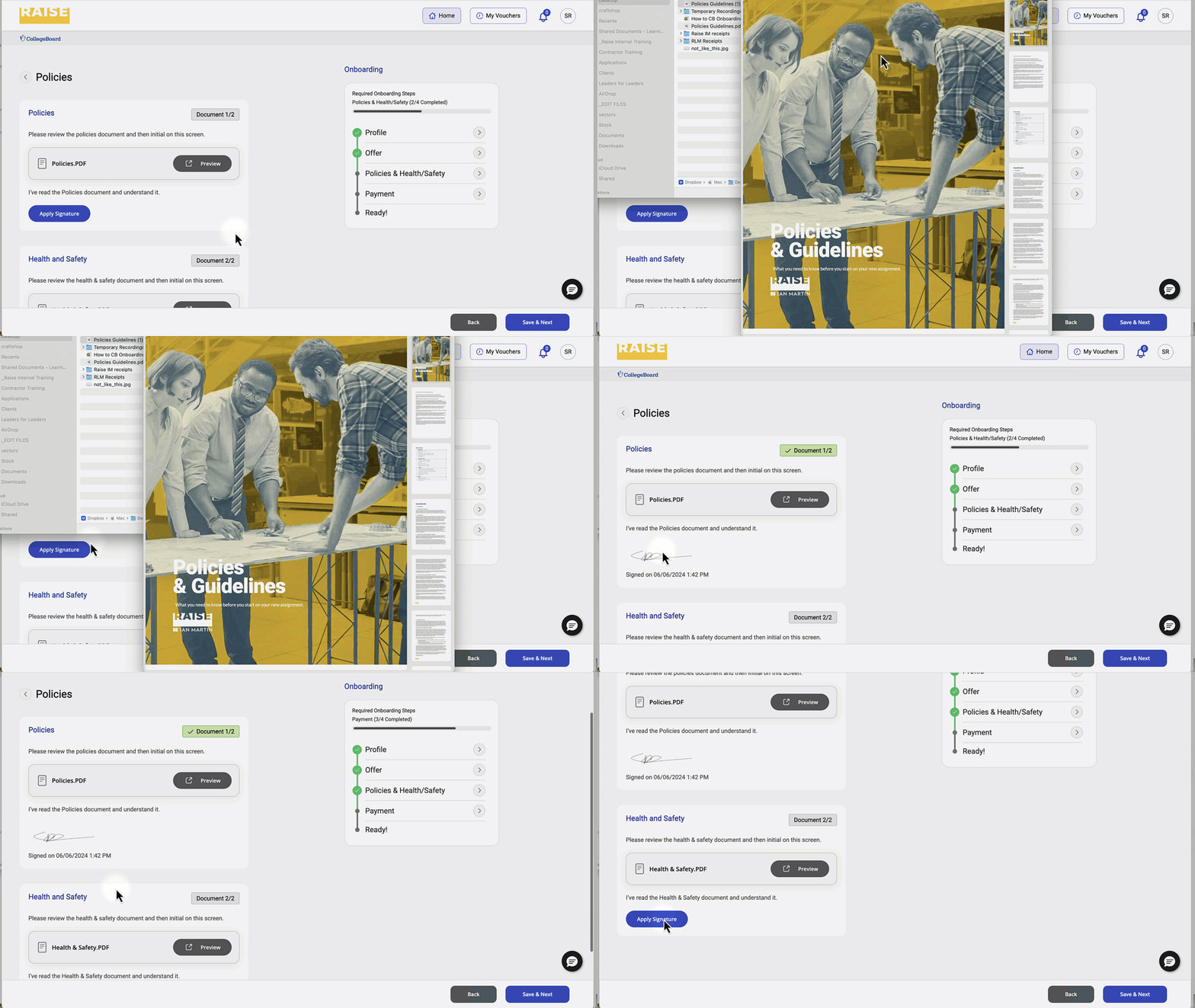
- Click the Preview button to download the Health & Safety information and read before you sign.
- Click Apply Signature to add your signature. This applies the signature from your Agreement.
- Click Save & Next.
Submit payment information and tax forms #
For security, you will likely be asked for a two-factor authentication code during this process. When prompted, enter your mobile phone number. The system will text you a code, which you will need to enter promptly to continue.
Confirm your address #
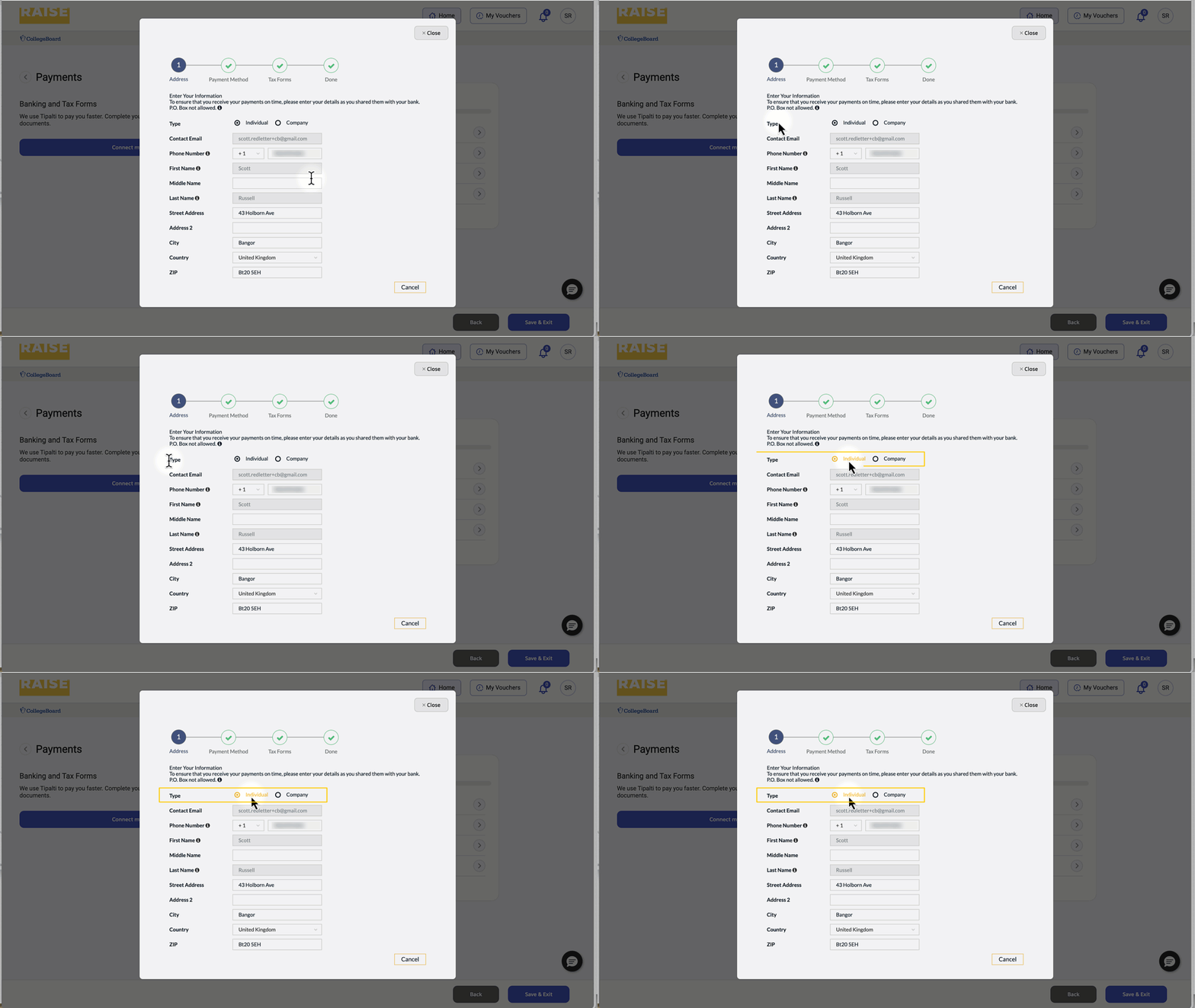
- Under Type, choose Individual.
- Confirm the address information shown here is the same as the information your bank has on file for you.
- Click Next.
- If this information is incorrect, return to the Profile section (the first step) to update your information.
Confirm your payment method #
- Use the dropdown to choose how you would like to receive payment.
- The fields of necessary information will change depending on what payment type you choose.
- Enter the necessary information for your payment type (e.g., bank details, PayPal account details, wire transfer details, address, etc.)
Fill and submit your tax forms #
- If you work and pay taxes in the United States (i.e., you’re an American citizen or permanent resident) – select W9 – for US individuals/entities.
- Click Complete Form.
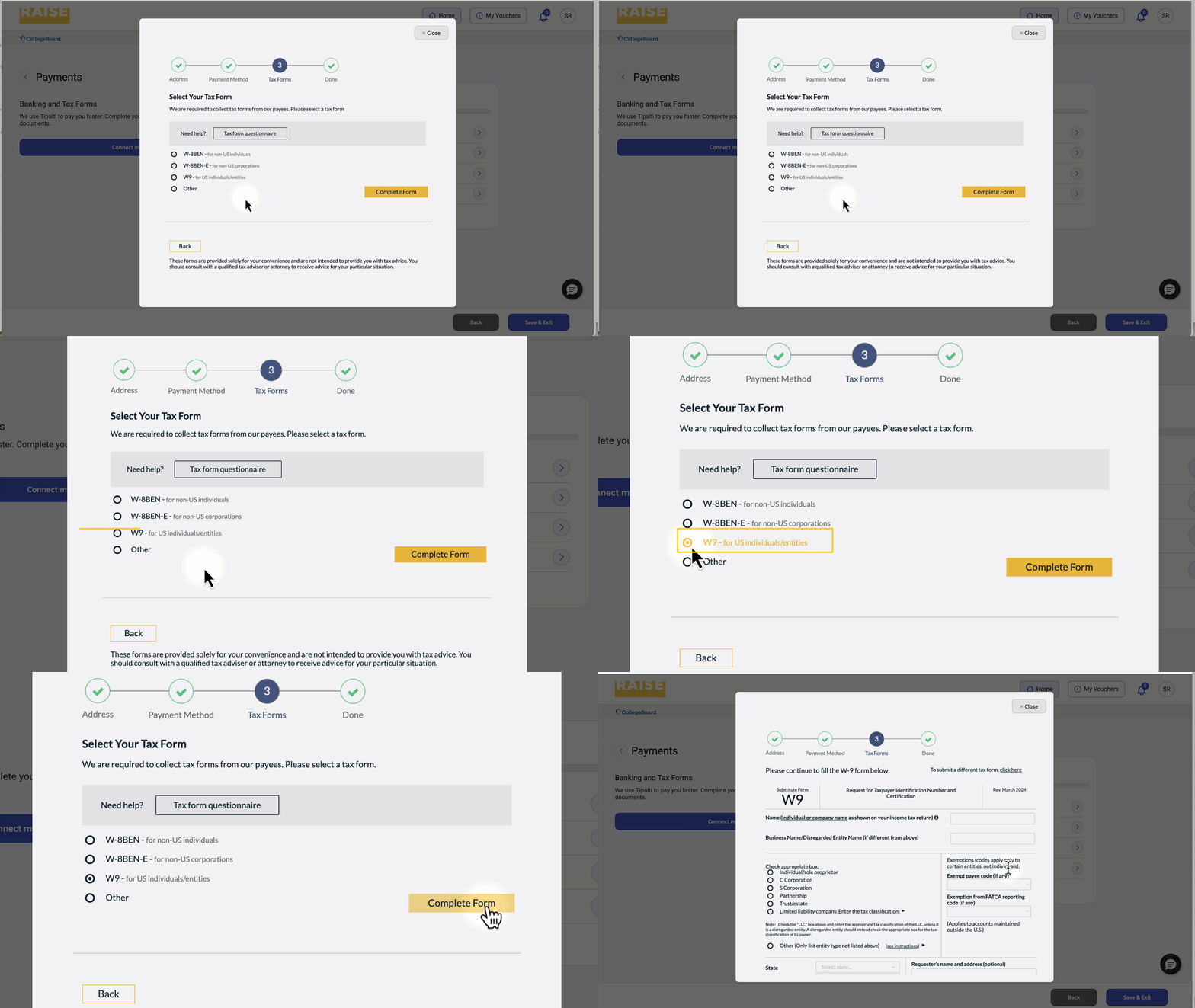
- Complete the information on the W9 form.
- Click Next.
You should not complete the W9 form unless you’re a US citizen or US tax resident.
If you’re not an American citizen and you’re working outside the US, please see this support document instead.
Ready to work #
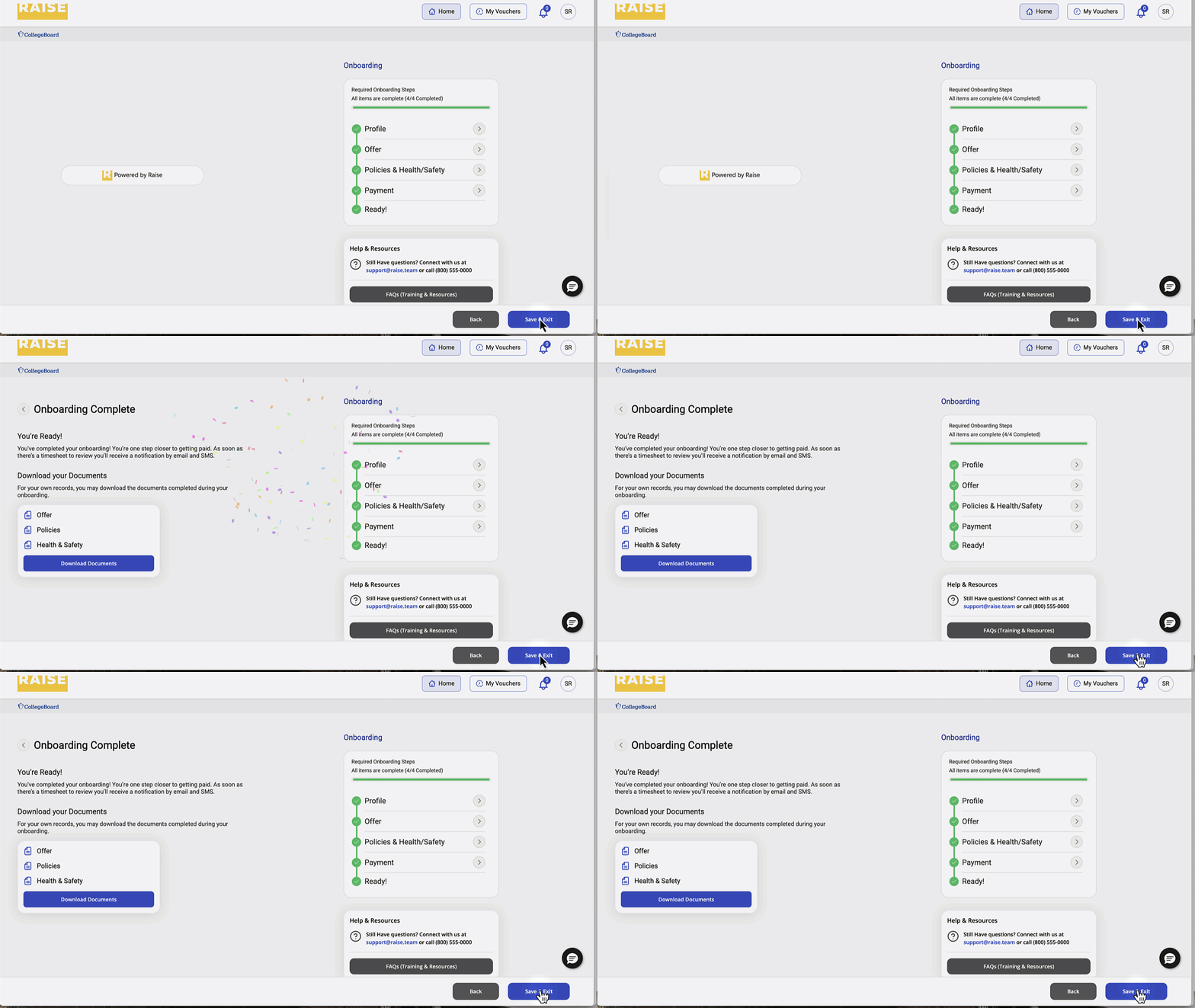
- When all your documents are complete and submitted, you’ll see that you’re ready.
- You can download signed copies of your Agreement, your Policies, and your Health & Safety documents for your records.