Edit your Dayforce profile #
- Sign in to Dayforce with your Company ID (Raise), your username (email address) and password.
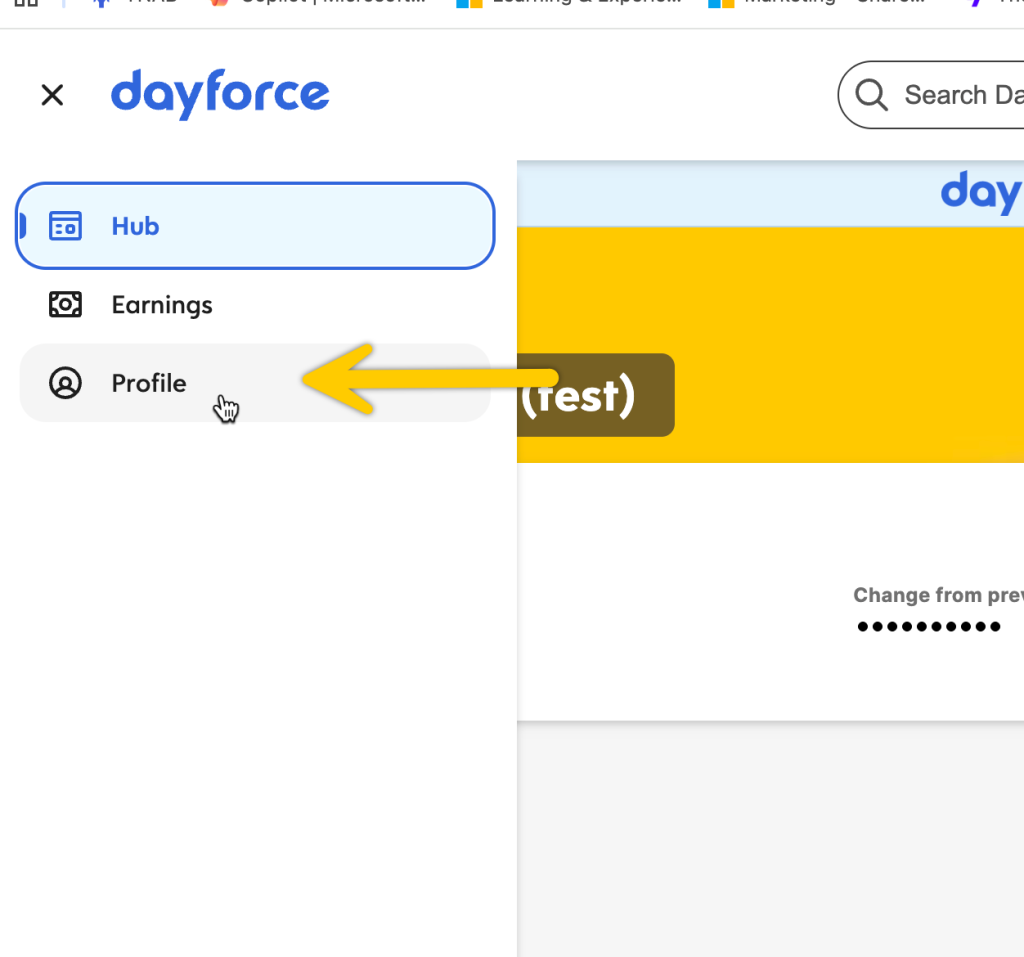
- Select for the Navigation menu (“hamburger icon”) in the top left-hand corner.

- Select Profile.
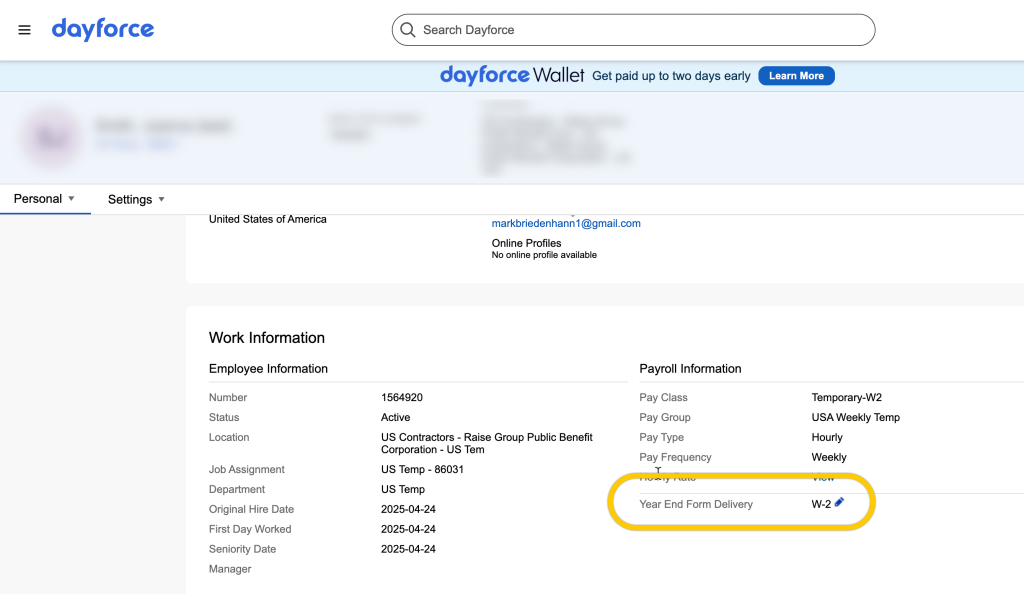
- On your Profile page, select Year-End Form Delivery in the bottom right of the screen.
- Click the Pencil icon to edit your choices.
Give consent / withdraw consent for electronic delivery #
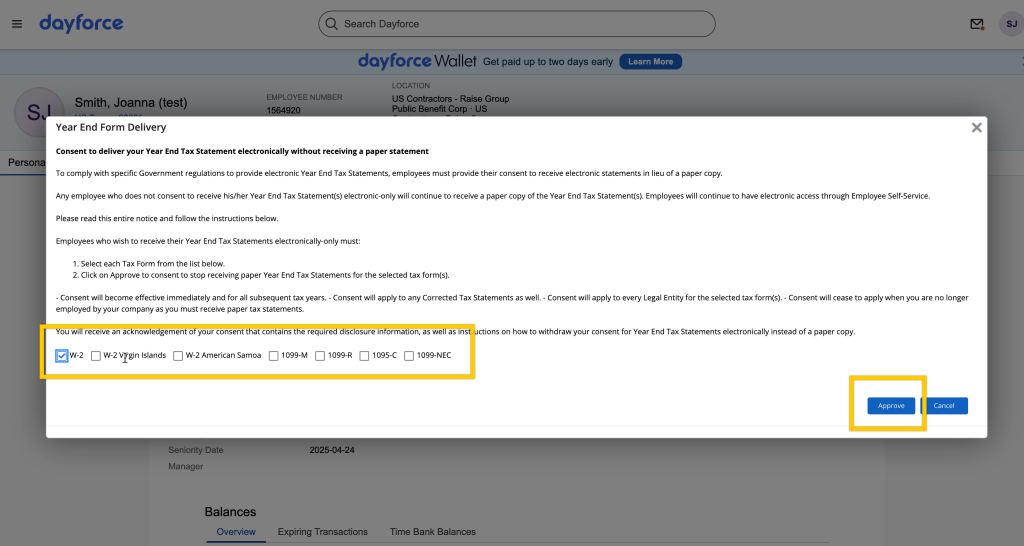
- A window will pop up asking for your consent to send your forms electronically.
- Click the checkboxes next to your expected year-end forms to give consent (e.g., W-2 form, 1099 form, etc.)
- If you’ve already consented to receive forms electronically, you don’t need to make any changes.
- If you opt to withdraw consent, you’ll receive the forms by letter mail later.
- Click Approve.
- You’ll see a green success message at the bottom of the screen indicating that your choices have been saved.