
The Form I-9 is required to verify the identity and employment authorization of individuals hired for employment in the United States. To verify your identity remotely, you will need an “Authorized Representative” in the same physical location as you who is over 18 years of age, can receive a text message on their phone, and sign a digital form on their phone.
To get started, click on the button that says Start I9 and Tax Forms.
This page might open in a second tab on your browser or phone if you are using an Apple device.
- On the Personal Information page, verify that your information is correct. If not, go back to the Profile section to correct it.
- Select your citizenship status.

- Select the documents you’ll use to verify your identity and employment verification.
- Upload clear photos of the front and back of your document.

- Complete any necessary fields, sign on the screen, and click Finish.

Work with an Authorized Representative to verify your Form I-9 #
Next choose someone to review your uploaded work authorization document(s) in person, and then sign your Form I-9.
Step 1: Confirm your location #
To complete the verification, click Begin Now. The person to review your documents (your “Authorized Representative”) must:
- Be at least 18 years of age
- Have access to a separate camera-enabled smartphone
- Be able to log in to an internet-connected device
- Be able to meet in person with you
- Be willing to sign that they have reviewed your document(s) and that they appear genuine and to relate to you.
When they are with you, with their mobile device, and you have your document(s) in hand, click the button labelled Share My Location.
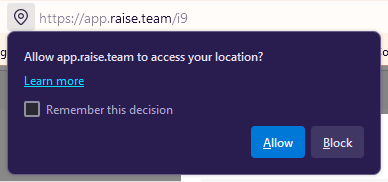
If you see a pop-up on your browser (desktop or phone) that asks you, “Allow app.raise.team to access your location?” Click Allow.
Step 2: Send a link to your Authorized Representative #
- Enter the mobile number of your Authorized Representative.

You have now completed your portion of the Form I-9.
What your Authorized Representative needs to do #
- Your Authorized Representative needs to click on the link they received as a text message.
- After clicking the link, they will see a page with instructions and a Submit Your Location button.

Step 1: Your Authorized Representative needs to share their location #
Your Authorized Representative will click the Submit Your Location button and then click the Allow button that appears on the phone.
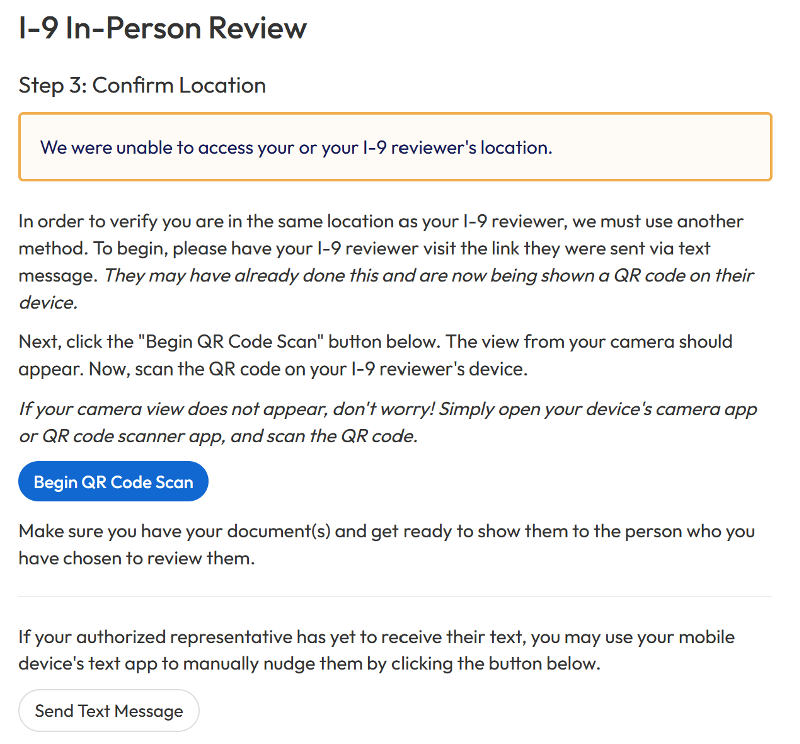
It’s important that you share your location: If either you, or your authorized representative, do not click Allow and share your location you will see an error message that says “We were unable to access your or your I-9 reviewer’s location.
Using a QR code scan if location sharing doesn’t work #
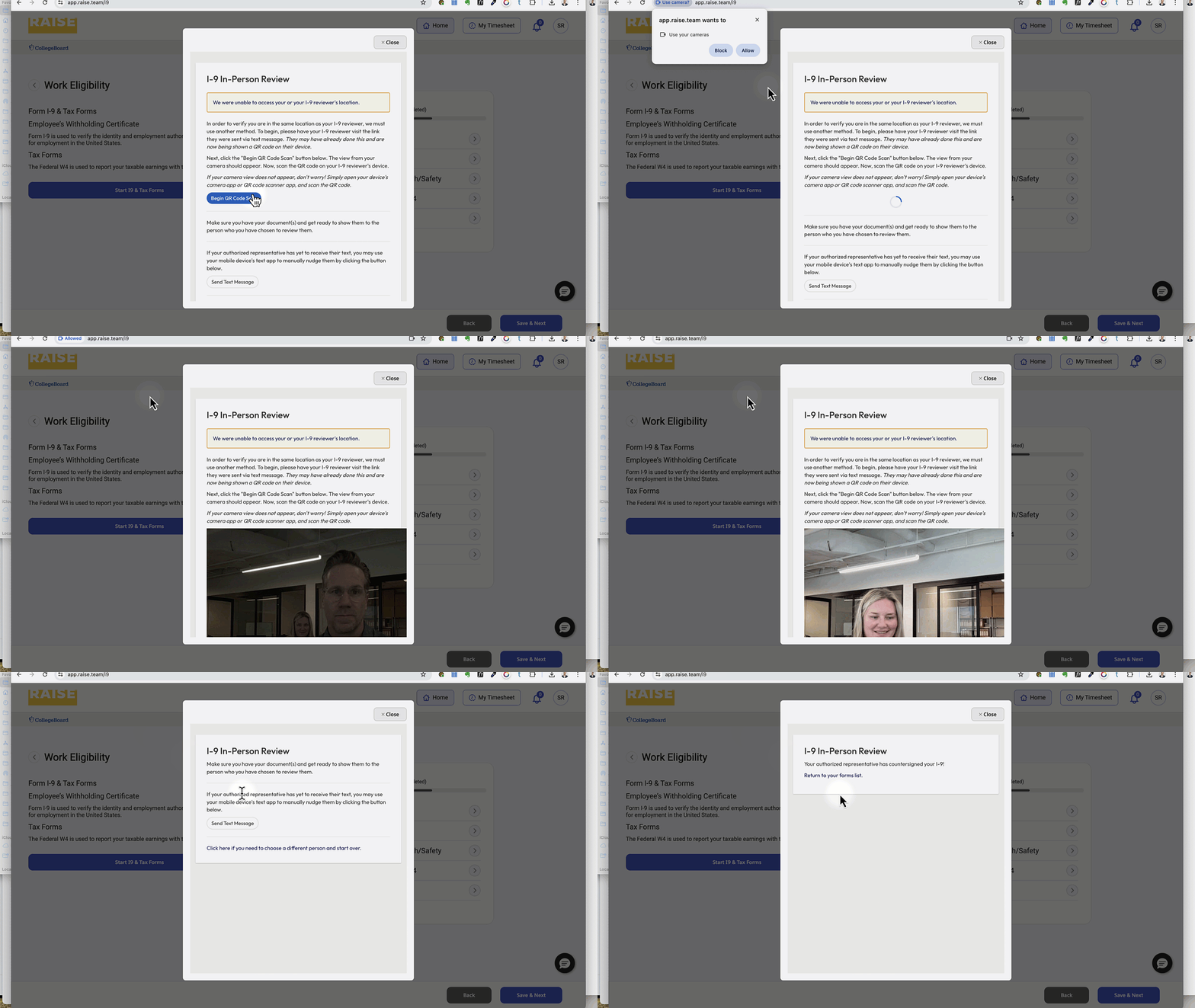
If location sharing doesn’t work, you can use another method to verify that you are in the same location as your Form I-9 Authorized Representative – e.g., scanning a QR code.
To use a QR code to verify that you’re in the same location:
- Have your I-9 Authorized Representative visit the link they were sent via text message. (They may have already done this and are now being shown a QR code on their device.)
- Click the Begin QR Code Scan button.
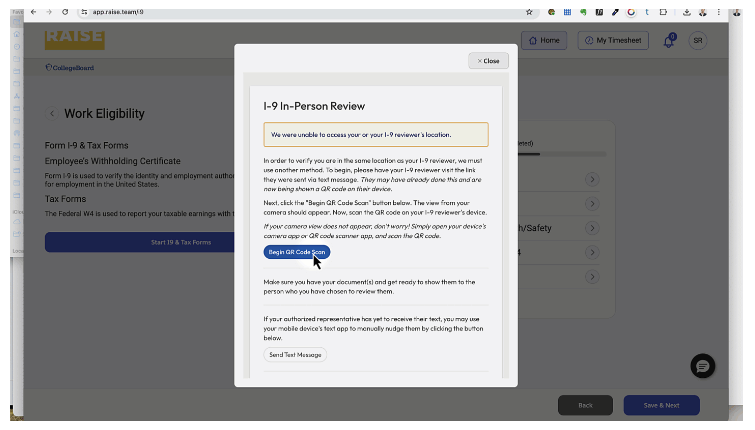
- Your phone camera or webcam should open.
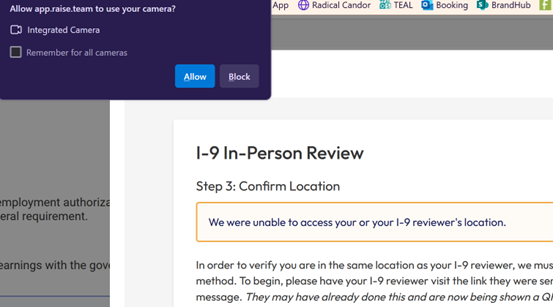
- Click the Allow button if prompted to access the camera on your device.
Scan your Authorized Representative’s QR code #
- A QR code will appear on your authorized representative’s phone screen.
- Using your computer webcam or phone camera, scan the QR code on the screen of your Authorized Representative’s phone.
Step 2: Certify Identity #
The Authorized Representative will add their Full Name read and agree that they will inspect your documents to verify that they’re genuine, that they belong to you, and that to the best of their knowledge that you are authorized to work in the United States.
Step 3: Review Documents #
- The Authorized Representative needs to look at your document on the screen, makes sure it matches your document, appears to genuine and appears to relate to you and clicks Continue.
- On their phone, they will then sign an attestation and click Complete Verification.
You and your authorized representative have now completed the Form I-9 process.